From event brief to saved report
Start with the people attending and the inventory you can actually offer. Your connected agent will keep the brief and evidence in a saved Source session.
Current Source workflow
All authorized Source users can open their saved event, choose the commercial objective and continue existing work. Select a company to recover its assessment, unsent approach and outstanding action. Saved reports and research methods remain attached to their event.
Start a fresh trial
Accept your invitation with its verified email address to open Source setup for your organization. Connect your agent, describe your own event and audience, then review and confirm the brief before research. A deck and preloaded reports are optional.
The 14-day billing trial starts when the organization is created. Authorized research and saves with your own agent need no evaluation funding. Supplier operations require separate approval and funding. Billing expiry does not itself revoke Source access; current membership and Source permission remain required.
Use the workspace theme control to choose a light or dark appearance.
Your demo can include operator-selected companies and report versions shared with your organization. Conversations and unselected reports remain private. Everyone shares the organization allowance. Accepting an invitation does not reset usage or start research time. Explicit event-brief confirmation starts the research period. A prepared event uses its event slot. Saved reports remain readable after research expires while your account retains access.
Open your workspace
Sign in at argus.ducket.io. Older demo and Source links redirect to Argus. Existing legacy workspace and recovery links keep their supported destination. Your email opens an Argus confirmation page. Choose Sign in or Confirm email and sign in to continue. Opening the page alone does not use the link. If an email link is invalid or has expired, request a fresh sign-in link and use the newest email. Use another email on the email-sent screen lets you correct the address. When accepting an invitation, use the email address it names. If you open the email in a different browser and lose the invitation, reopen your original invitation after signing in.
Accept your invitation using the work email it names. Invited demo members land on Overview for their organization. Choose Start sourcing for your own event or Connect your agent. Open prepared Atomic demo or Open prepared Echelon demo opens the saved event explicitly. An organization-specific demo invitation with approved setup enables connected Source when you accept with your verified login. Agent-only evaluations open Connect your agent directly. A changed or revoked workspace or allowance stops setup before the invitation is used. Prepared report opens and fresh sponsor or exhibitor research keep their separate allowances. If your account has several eligible organizations, choose the one you want. Your choice is checked against current access when you return.
Your prepared demo workspace already exists. Accept its invitation and open Overview. There is no company setup, market questionnaire or pilot checkout for this demo. Returning sign-in opens the same workspace. Email me a sign-in link provides passwordless email access; use the invited address. After joining, use your workspace link instead of accepting the invitation again.
Signing in without an invitation does not join a demo team or create a research allowance. If you have no team, Your Argus access lets you reopen the invitation supplied by your contact. Returning members can sign in with Google or Email me a sign-in link without another invitation. An authorized requested page opens directly; otherwise your organization Overview or workspace choice opens. Repeat login and invitation acceptance do not copy prepared work or reset allowances.
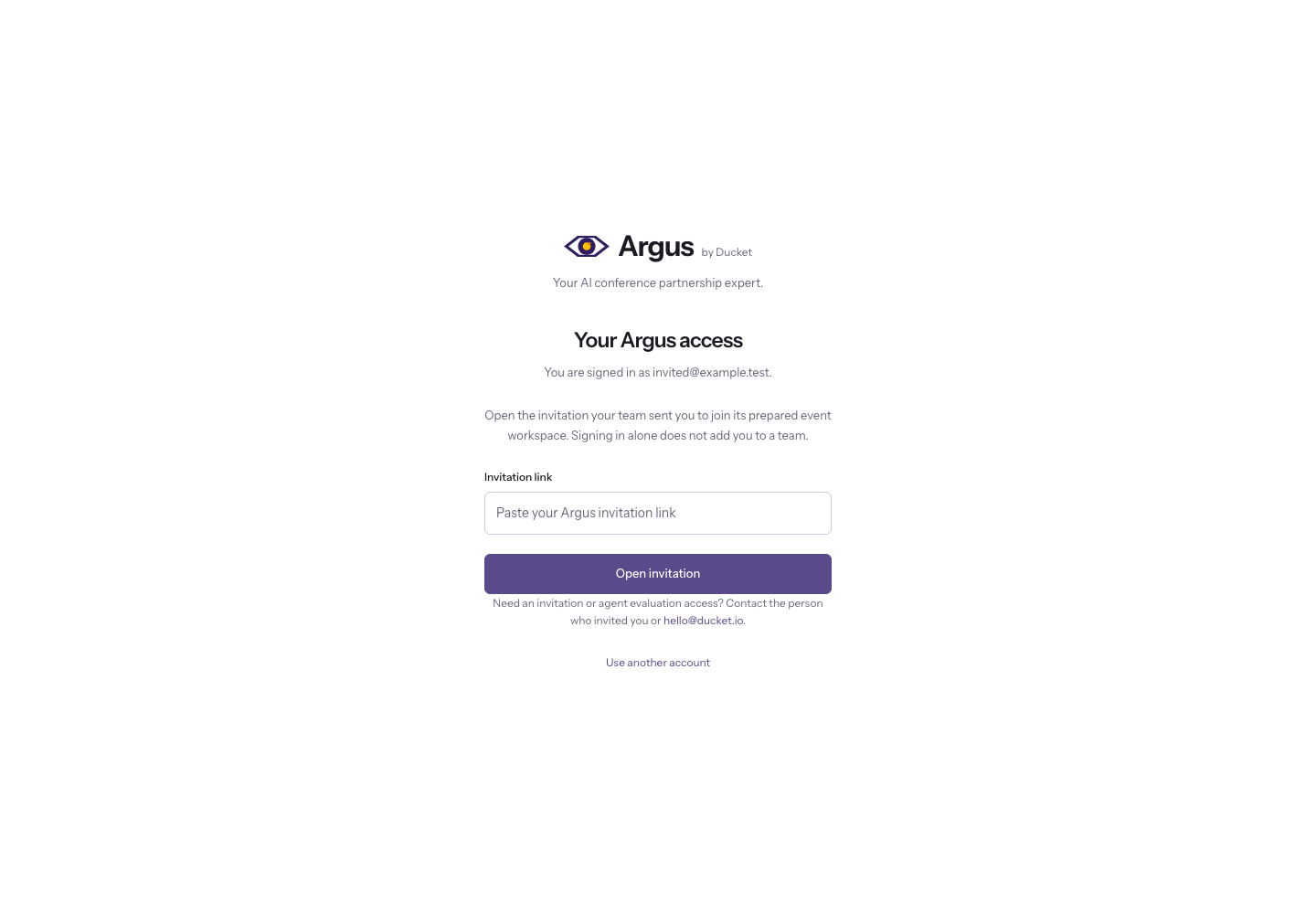
The centered Argus sign-in page offers Continue with Google when available, password sign-in with Show or Hide, and Forgot password. Email me a sign-in link opens an email-only form; choose Send sign-in link to send it. The email screen offers a resend countdown and Use another email. Need help signing in expands account guidance. Password recovery keeps your invitation or prepared-workspace return.
If the invitation says to use your invited email address, choose Use another account. This signs out this browser and keeps the same invitation. Sign in or create an account with the address that received it. You can also open the original invitation in a private window.
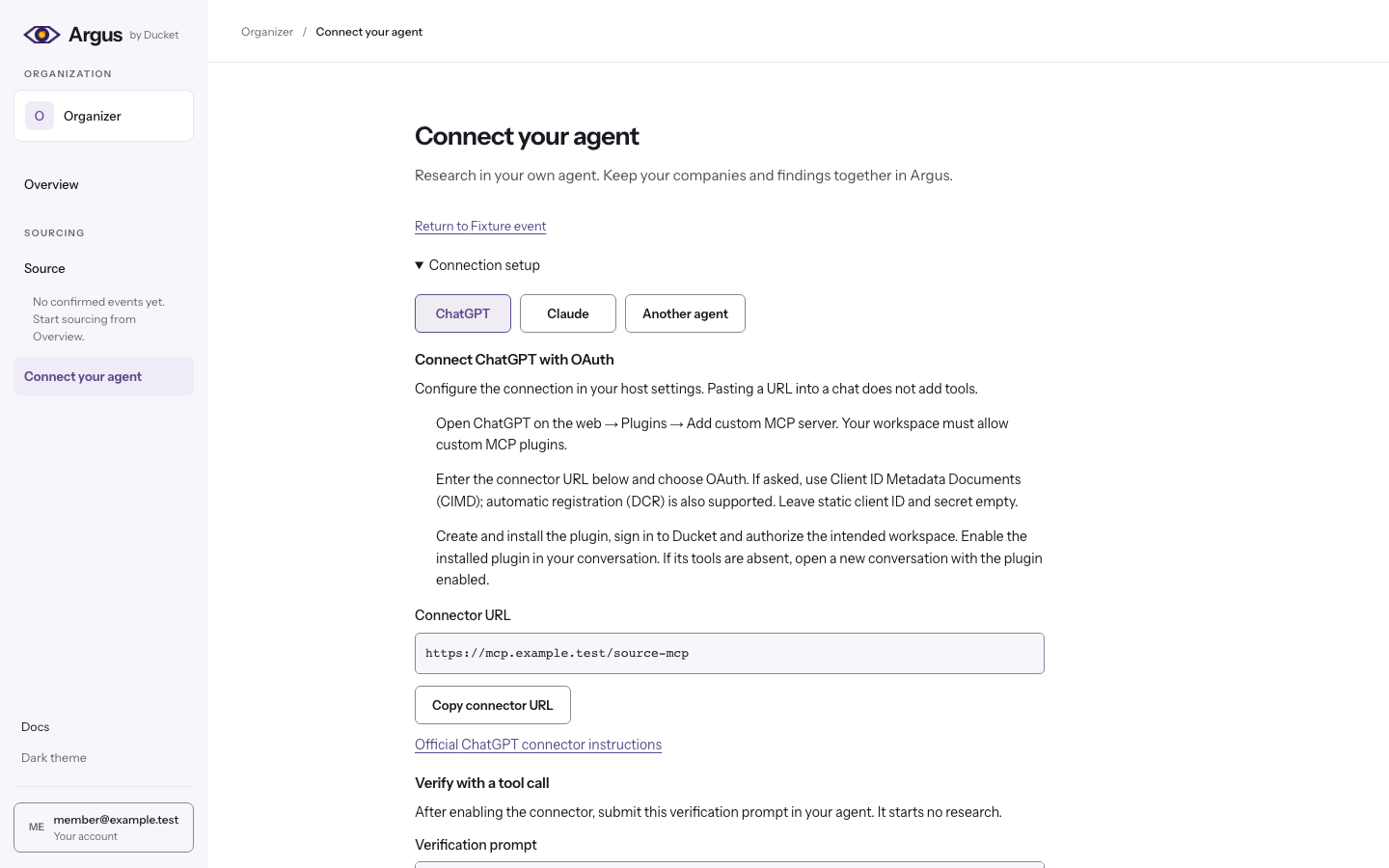
The prepared demo and agent evaluation shell has your Organization card, Overview, Source and a dedicated Connect your agent link. Your signed-in email appears in the account menu at the bottom left. Overview offers Start sourcing, Connect your agent and any explicitly prepared demo. Saved event workspaces appear directly under Source in the sidebar. Choose an event to open its company table, or expand its conversations to resume saved history. The account menu still provides settings and sign-out. These workspaces have no global search launcher or market navigation.
Ducket team members can select Ducket in Your workspaces. Connect your agent appears in its Overview and sidebar after Source connection access is enabled for that named account. Agent setup pending means the account still needs that access. Team membership alone does not start research or grant a research allowance.
To generate a report in a prepared demo, open a company and choose Generate report when a separate research allowance is available. The request uses that company and the event's saved brief. Follow its saved progress and choose Read report when it is ready. Failed or incomplete requests remain counted; reopening and refreshing do not restart them. An incomplete attempt shows its saved blocker and the permitted review step. It does not count as a completed assessment or grant a retry. Prepared report opens use a separate allowance and buy no fresh research.
In a prepared workspace, choose Use this event with my agent. Review the summary and create a connected draft. Confirm the brief with your agent before research. Prepared companies and assessments stay in their original workspace. Current prices and available stock still need organizer confirmation.
Assess a booth opportunity
Use All companies, Sponsors or Exhibitors above the same company table. The count reflects your filters. Use the separate Status filter to find proposed, researching or unresolved work. A company with both opportunities appears once. An operator-reviewed booth prospect carries its commercial case, dated source and review provenance. The original engine decision remains inspectable. Export follows the displayed opportunity filter.
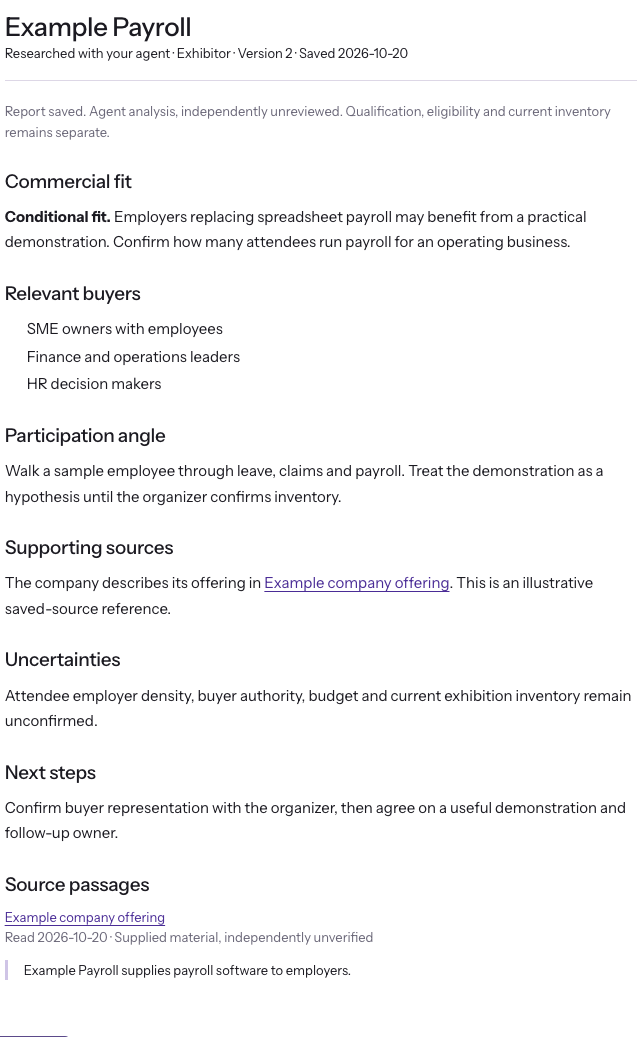
Generate report assesses the selected opportunity. Exhibitor research checks why the company would benefit from meeting buyers, its eligibility and organizer-defined booth options. It needs its own explicit research authorization. Sponsor report opens, sponsor research and connected evaluation allowances do not authorize it. Follow saved progress and use Read report to reopen the result without another request.
A completed relevance assessment can leave booth eligibility and availability unresolved. Historical inventory, sold-out stands and unmet conditions never become a current offer. Incomplete work remains saved and counted. Failed or uncertain work needs review before recovery; reload and repeated clicks buy no new work.
Connect and verify
Follow Connect your agent. Ask it to verify Ducket Source capabilities. Setup should say it is complete, ask for your event or deck, and wait. It creates no session or research merely to connect. After you provide an event and confirm the brief, retain the returned saved session address for your next conversation.
After brief confirmation, your agent can save evidenced company progress to the normal Argus table. A new event gets its own real workspace under your existing event allowance. Further conversations about the exact same event reuse it. Company detail opens saved sources and separately permitted assessments. The Status filter keeps unqualified work accessible. Private session progress is still limited to its authorized author.
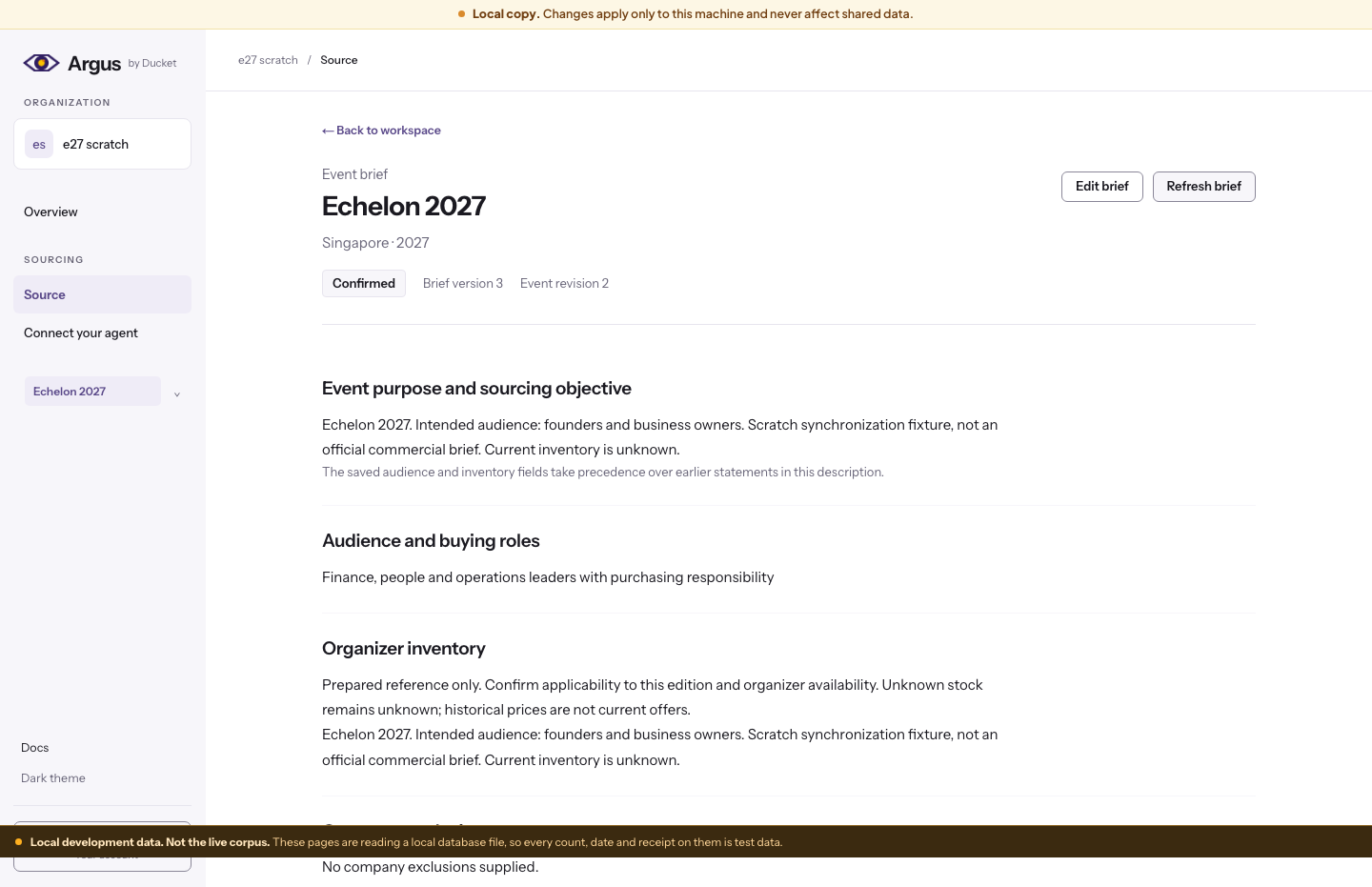
Source opens an event description and deck attachment, with links to your authorized saved events. The brief groups event identity, audience and buying roles, sourcing objective, and organizer inventory and exclusions. Inline corrections retain their source and earlier versions. Prepared-event preferences change the reading of saved evidence and buy no new research.
The brief editor opens through Review your brief. Edit a section and apply it locally, then review the current and proposed values before confirming. Save draft leaves confirmed context effective. You can change a saved draft back to the confirmed values, for one section or every section. Review shows the draft values being replaced; confirmation saves your reviewed proposal. Confirmed agent and workspace edits use the same private event brief. Earlier reports stay readable and changed conclusions need review. A newer edit causes a conflict so your local changes cannot overwrite it. Reviewing or editing starts no research and resets no allowance. A temporary what-if question leaves saved facts unchanged.
Research with my agent on a company copies its task for your connected agent without changing pages or purchasing research. Recently opened company tables can remain visible while fresh data loads. This short-lived cache stays in memory, is scoped to your account and access, and clears on sign-out or account changes. Connection status and research permissions are checked separately.
Confirm your brief
- Supply the event name, edition, location, audience and exclusions. Describe who buys and who attends.
- Provide current organizer packages and their recorded contents. Supported PDF, PowerPoint and Word documents use the shared 25 MiB upload bound and need a readable text layer. Image-only decks need a text version.
- Read the saved brief and confirm its version. A correction replaces the brief with a new version. Confirm the new version before further work.
Find and research prospects
Ask the agent to search, read official company pages and submit candidates with evidence. Ducket checks identity, the offering and its buyers, their connection to your audience, and distinct buying accounts. Held names remain saved with the evidence still needed. Lists are caps; a short list is an honest result.
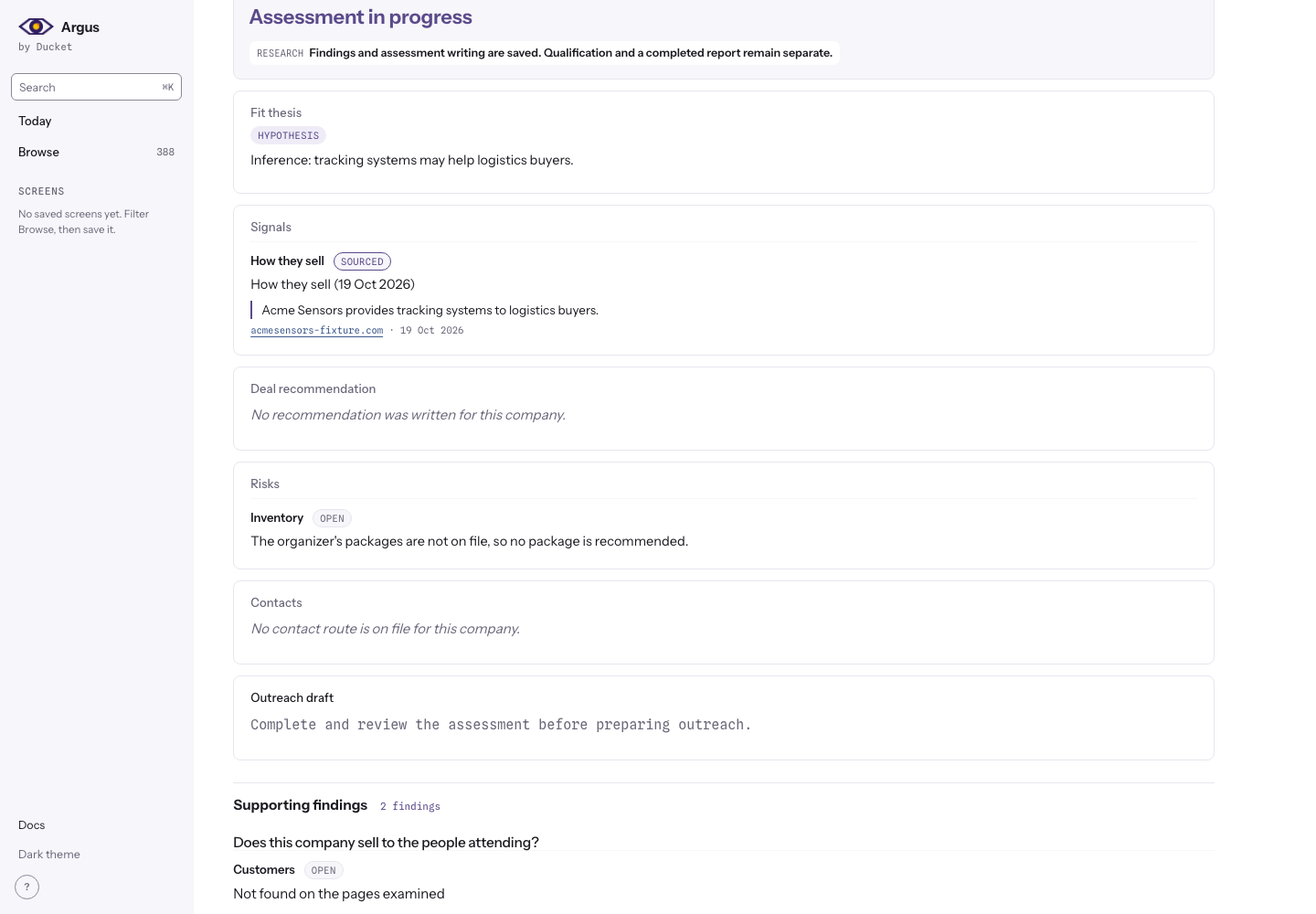
Ask your agent to save supported findings and useful writing even for a held company. Open Assessment in progress to see the case, sources and outstanding questions. Saving keeps qualification and completed-report requirements intact. Work written only in chat or a local file must be saved through Source to recover it later. The agent should recover evidence before recording an unknown. Read the final assessment before using its recommendation.
Reopen and correct
Choose your event under Source in the sidebar to open saved companies and assessments. Expand its conversations to reopen a saved conversation under the same account. Give a fresh connected agent only the session address to recover saved findings, citations, writing and missing work. Earlier investigations and reports remain readable after corrections with their original brief version and Needs reassessment status. Nothing promotes old conclusions automatically.
See Evidence and reports for review labels and troubleshooting for stale or interrupted work.
Explore the feed
Market subscribers can also use Today, Browse, alerts and sponsor coverage as dated market evidence.