Browse
The corpus at the grain you want, as Browse in the left rail: by company, by event, or deal by deal. The deal grain is the raw table under everything else, filterable and sortable; use it to build a concrete slice, for example every active gold-tier sponsor at fintech events in Singapore.
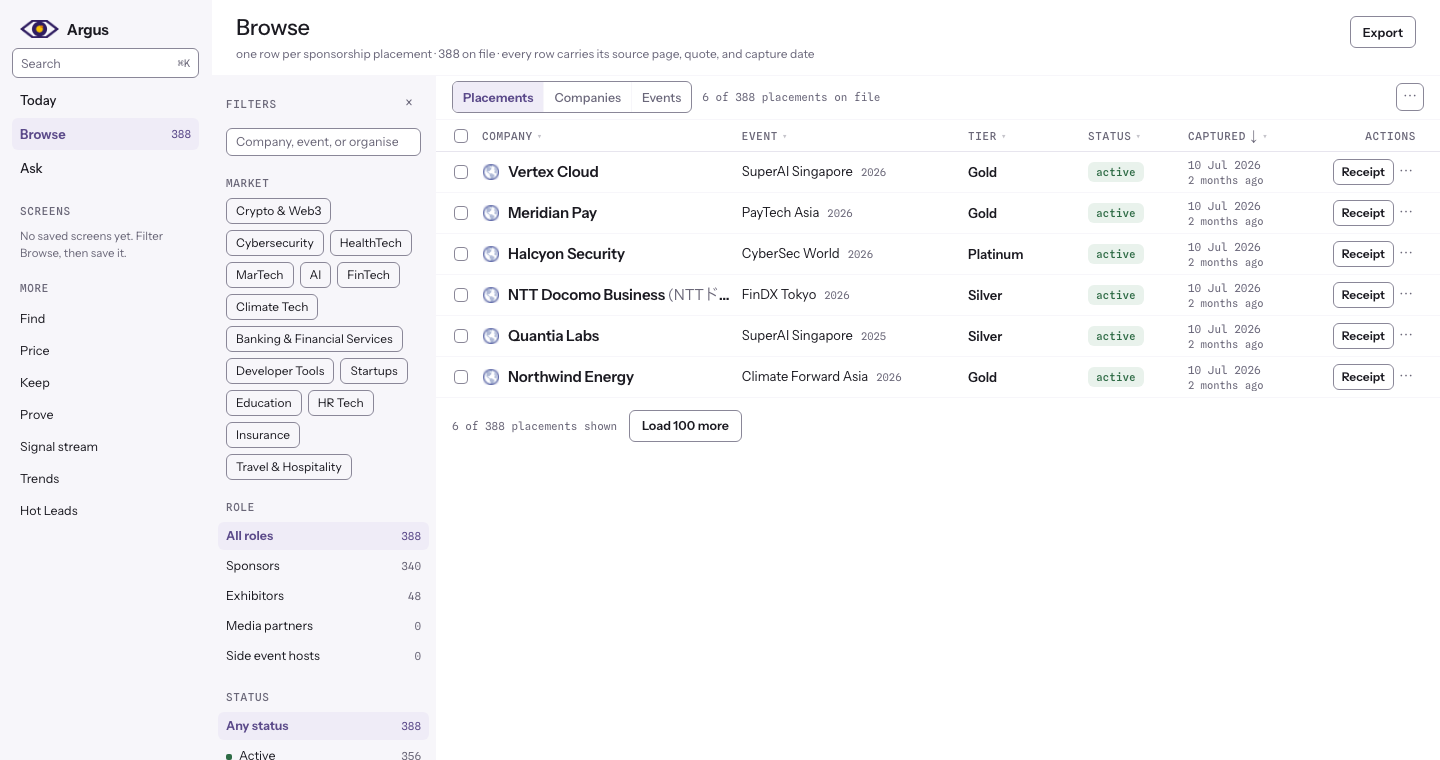
The three grains
The switch above the grid changes the grain, and the line under the page title says what one row means at the grain you have picked. Companies and Events are indexes over everything on file, each row opening the entity's own page; ordering is a count over captured rows, never a ranking of fit. Placements is the grid below, one row per captured listing. The grain rides the address bar, so a view is shareable.
The grid opens on five columns: company, event (with its edition year beside it), tier, status and the date of capture, which reads as a short date with its age in words beside it. Evidence, the estimated fee, region, country, the page's own wording and the rest are one click away in the ⋯ menu above the grid, and a choice is remembered. Receipt on a row opens the record beside the grid, quote first: the exact words the page used, where and when they were read, and the way to the source page, then the row's facts, then the company and the event it belongs to.
All three work the same way: click a column name to sort or filter that column. What each column offers depends on what it holds, so the count columns on Companies and Events (events on file, listings, editions, sponsors) take a lowest-and-highest range rather than a list of values. Setting the highest to zero on the Events grain asks a useful question on its own: which tracked events have no roster on file yet. Each grain remembers its own filters, so a bound you set on Events does not follow you to Companies.
What the screen holds
The This screen panel beside the grid reads the current screen back to you: how many deals match, how many of them are on screen, the number of companies and events they cover, which markets and countries appear, and the span of capture dates. When only part of a large result set has loaded, the panel says so and describes only what is loaded. Press Load more to have it describe the whole screen. On a narrower display the panel moves under the grid.
Building a slice
There are two ways in, and they are the same filter. The filter rail beside the grid stands open by default: a search box that matches a company, an event or an organiser, then market, role, status, evidence and edition year. Its × folds it to a narrow strip (opening a row's record folds it too), and the strip brings it back. Or filter a column where you are reading it, from its own header: tier, region, country, published wording, company size and organisation kind all live in their own column menus. Nothing covers the rows while you choose. The result is a working list you can act on, and every row keeps its receipt, so a name on your list is always one click from the page that put it there. Once something is actually narrowing the grid, Save as screen appears at the foot of the rail; name it and it joins Screens in the left rail, ready to re-apply.
Clear filters appears beside it, on the same condition, and it clears the column-header filters as well as the rail's own.
Filtering from a column header
Click a column name to open that column's own menu: what the column means, sort ascending or descending, and tick boxes for which of the column's values you want to see. You can tick as many as you like. Ticking gold and platinum shows both, rather than replacing one with the other, and a column with several values ticked carries a small count in its header so a filter is never working invisibly.
Sorting lives in that menu, as a choice that names its direction. Clicking a column name opens the menu and leaves the order alone. The arrow beside a column name still tells you which column the grid is ordered by, and which way, without opening anything.
Values within one column widen the result; filters across different columns narrow it. So gold and platinum in Tier, together with active in Status, reads as "gold or platinum, and active". Where a column has many values the menu carries a search box. Company and Event are matched by typing part of a name instead, since their value lists would run to thousands, and Observed takes a date range. The header menus and the rail write the same filter, so anything you tick in one shows up in the other, and Clear filters clears both.
The search box on the toolbar is the wide one: it matches a company name, an event name, or the organiser stated on the event page, so typing an organiser brings up every deal on file across the events they run. The Company and Event boxes inside the column menus stay strictly to their own column, which is what you want when the wide search returns more than you meant.
Opening a record
Click a row and it opens as its own page: the exact words the page said, the page they were read from, the date it was captured and how long ago that was, then the rest of the record with links out to the company, the event and, where one exists, the event family. The estimated fee sits at the bottom, labelled: it is derived from tier and event size, it is not a published price, and it is not part of the receipted record. Where the row has no stored quote the page says so rather than showing an empty pair of quotation marks.
If you would rather stay on the grid, press Receipt on the row instead and the same evidence opens in a panel beside it, with the rows still on screen.
When a read fails
If Argus cannot refresh the grid, the records you were reading stay where they are and a band appears above them saying what failed and that what you can see is the previous read, unchanged. Retry tries again. Only when there is nothing to fall back on does the failure take the whole area, and it is never dressed up as an empty result.
Picking rows and acting on them
Tick the box on any row and one bar appears with a single main action and a small overflow menu beside it. Tick the box in the header to take everything on screen. With nothing ticked there is no bar at all, so the screen stays quiet until you have made a choice. Exporting from that bar exports exactly the rows you ticked, rather than the whole screen.
Each row also carries its own menu at the far right: open the receipt, the company, the event or the source page, or copy the company name. On the last row of a long grid the menu opens upward so it is never cut off by the bottom of the window.
Opening a row
Click a row and its detail opens in a panel beside the grid rather than over it, so you keep your place, your filters and anything you have ticked. The panel holds the placement, the evidence quote and the link to the page it was read from. Close it and the grid is exactly where you left it.
While it is loading, and when it fails
The grid tells you which of three things is happening. While it is loading you see text-shaped placeholder rows. When the answer is genuinely nothing, it says so and names the filters that produced the empty result, with a way to clear them. When the read itself fails, it names what failed and offers Retry, so you do not have to reload the page to try again. An honest zero and a broken read never look alike.
How old a capture is
Every captured date carries its age. Current dates read in normal ink, ageing ones soften, and stale ones go faint and say "stale" in words. Age is never shown as a colour: on these screens green means the market is spending, amber an opening, and red revenue at risk, so an old capture painted red would make red mean two different things.
Hiding rows you have dealt with
You can hide rows from your own view. The confirmation says what that means: hidden rows stay in the corpus and keep their receipts, and they come back when you clear hidden rows. Nothing is written anywhere and nobody else's view changes.
Reading the columns
The grid opens with the columns that change from row to row: company, event, tier, status, verification, when it was captured, and the estimated fee. The dimensions that repeat under a filter (vertical, region, country, year, the event's own wording for the tier, and company size, and the kind of organisation) start switched off, because under any real filter they hold one value for screen after screen. Every one of them is one click away under Columns, and your choice is remembered on that browser.
Tier shows Argus's folded tier; the label exactly as the event displayed it rides along as the cell's tooltip, or as its own column once you switch on As listed. Events label loosely, so both readings are kept. A row reading Listed means the company was on the event's sponsor page and the page stated no level: listed on the sponsor page; the page gives no tier. It is not a level, and it is not a claim that the company is a plain sponsor rather than a gold one. Where the page did state a level, that level is what you see. The Role filter separates sponsors from booth and media placements, which are different products. Status says whether the listing was present on the most recent capture. Observed is the date of the capture the row rests on.
Telling a company from a ministry
Not every name on a sponsor page is a company. Governments, embassies, universities and industry associations sponsor events too, and they are real sponsors with real receipts. The Org type column says which kind of organisation a row is: government body, embassy or consulate, university or school, industry association, or company. It is a description of what the organisation is. It is not a ranking, and it says nothing about how good a prospect they are.
Filter on it the way you filter any other column. Ticking company gives you a commercial-only list, which is what you want when you are building a peer set. Ticking government body across a vertical shows you which public money is backing that circuit. A row Argus has not classified reads as a dash and is included in every result, because an unread name is not a claim.
The same label appears on the company's own page, under its name. Argus reads it from the organisation's name and its web address, so a name that gives nothing away stays unclassified rather than guessed at.
Exporting
The current slice exports as CSV with the source links included, so a list you hand to a colleague carries its evidence with it.