Your team
Find saved work from your organization and see who created it. Report access and action permissions still apply.
Who can do what
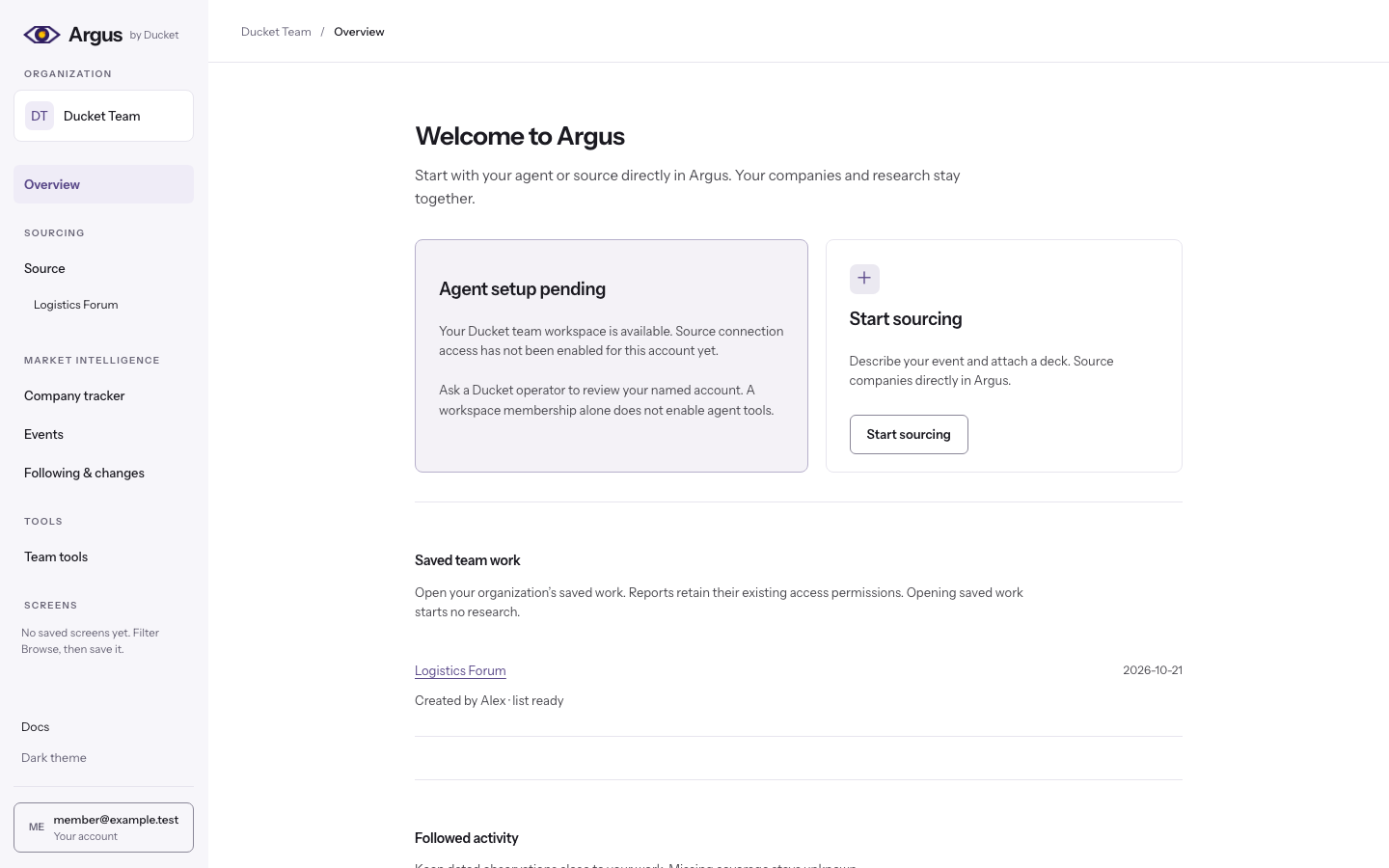
Overview lists your organization’s saved events and their creators. Open the same briefs, company lists and granted reports that your colleagues use. Opening saved work starts no new research.
- Organization-owned briefs and granted reports are shared. A report your organization has never been allowed to read remains unavailable.
- Explicitly saved connected-agent company progress and ready reports are shared. Prepared customer publications keep their selected progress and exact report versions. Their original context stays attached. Check applicability before using a recommendation.
- Personal conversations, session briefs, drafts, raw session evidence and connection credentials remain private.
- Read access keeps existing editing, deleting, spending and sending permissions. A read-only member cannot perform those actions.
- The subscription holder manages invitations, seats and billing. Removing a teammate preserves the organization’s saved work.
Internal Outreach
Separately authorized Ducket staff can shortlist organizers, copy research tasks for selected accounts, review exact emails and send an approved batch. Each email needs human approval and an owned mailbox. An agent can execute only a previously approved batch when explicitly requested. Provider acceptance does not prove delivery. These internal permissions do not change customer Source drafts or sending access.
Market intelligence
When your organization has Argus access, Company tracker and Events open the existing screener. Filters, sorting, pagination, source dates and company or event detail pages keep their usual behavior. Following & changes opens your saved tracking view. Following, screens and alert delivery keep their existing ownership. A roster appearance establishes an observation. It does not establish payment or buying intent. Missing or partial coverage remains unknown.
Ducket Team uses Team tools for existing specialist views, outreach and authorized published customer previews. A customer preview remains read only. Administration requires a separate permission.
Invite by email
On the Organisation tab in Settings, enter your teammate's email and send. They receive a single-use link. When they open it and press Accept, they can sign in or create an account, with an email and password or with Google, even while public sign-up is closed. After they confirm their invited email, the link brings them straight in and they join your team automatically. The signed-in account must use the address the invitation was sent to. Each teammate keeps their own login, including when the organization changes plans. No join code is needed for an email invitation.
- Open Settings, choose the Organisation tab, and find the invite-by-email card.
- Enter the email and send the invitation.
- The link works once and expires after two weeks.
Join codes
Email invitation is the only way to add a teammate. There is no join code to manage on the Organisation tab, so nobody can join by passing a shared secret around: every member arrives because the person who holds the subscription invited them by name. If your team was set up by the Ducket team and you were given a code, it still works from the welcome screen.
Managing members and seats
The members table on the Organisation tab in Settings lists everyone on your team. The person who set the team up can remove a member from there, and cannot be removed themselves, because they hold the subscription. Seat usage is shown at the top of the tab; see Plans and billing for what seats cost and how to add them.